
01 Install CAPS
CAPS is the small Marker North app that runs in your Windows tray. It reads your game and runs Navigator. Navigator works in ATS, and in ETS2 as a beta (ETS2 1.61).
- Create your free account on the sign-up page and confirm your email. The email can land in Spam or Junk, so check there too.
- Download CAPS from the Downloads page. Already have an account? Log in and you go straight there.
- Run the setup. It installs CAPS and the telemetry plug-in for ATS and ETS2. Close the game first.
- Sign in once in CAPS with the same email and password. CAPS remembers you after that, and the Marker North Hub opens with a short welcome.
Smart App Control: CAPS, its setup and the telemetry plug-in are digitally signed. Windows shows Marker North as a verified publisher, so Smart App Control lets them run.
02 The Marker North Hub
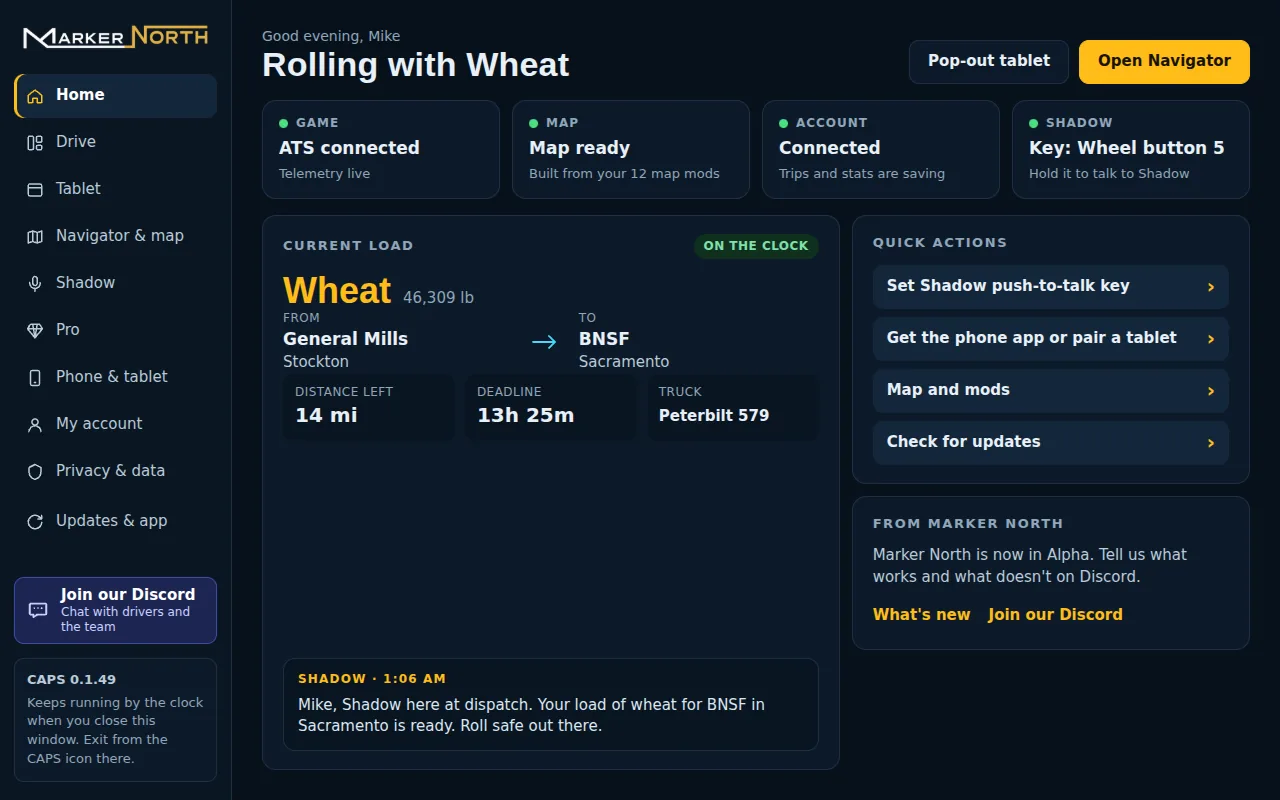
The Hub is CAPS's own window on Windows. It shows your game, map, account and Shadow at a glance, and it's in English and Spanish.
- Open it: right-click the CAPS icon by the clock and choose Open Marker North Hub. It also opens when Windows starts (switch off Open Marker North when Windows starts under Updates & app), and it never opens by itself while the game is running.
- Welcome: new drivers get a setup card with three things to do: get Navigator on your phone or tablet, pick a push-to-talk key for Shadow, and build your map. Do them now or later; they're all in the Hub any time. After an update, a What's new card shows what changed.
- Home: your game, map, account and Shadow at a glance, your current load, quick actions and Shadow's last message.
- Drive: Navigator's map with gauges, trip, truck and Shadow panels. Move and resize them with Edit layout, or pop any panel out into its own small window over the game.
- Tablet: the same tablet as in the truck, docked inside the Hub. Choose Pop out over the game to place it over your truck's screen.
- Navigator & map: start Navigator, open it in your browser and see the map mods your map was built from.
- Shadow: your push-to-talk key, Shadow's ears, his voice and volume, what he calls you, and when he talks.
- Pro: everything Navigator Pro adds, on the same CAPS with no new download.
- Phone & tablet: get the app and pair a phone or tablet.
- My account: your dashboard, trips, rankings, convoy and VTC, messages and settings on markernorth.com.
- Privacy & data: what CAPS sends, what stays on your PC, and your last map build report.
- Updates & app: check for updates, what's new, release notes, the language, starting with Windows, and the tour.
Closing the Hub keeps CAPS running by the clock, so telemetry, Navigator and Shadow keep working. To quit, right-click the CAPS icon by the clock and choose Exit CAPS.
03 Your first map build
Navigator builds its map from the same game and mod files the game loads on your PC. That way the map matches exactly what you drive on.
- What happens: Navigator reads your game and active mods and builds a map with all their roads, cities and companies. Your files are only read, never changed.
- It takes time once. The first build usually takes 10 to 30 minutes, longer on slower PCs or with many map mods. After that, your map opens right away.
- You can drive meanwhile. Navigator uses a ready-made map until your own map is ready (in ETS2 it downloads the Europe map), then switches by itself.
- Map mods are supported. A new build only happens when you change your active mods. A mod that can't be read is left out, and the rest still build.
- Ready-made maps: when Marker North already has a finished map for your game version, DLC and map mods, Navigator downloads it in minutes instead of building it.
- Disk space: each map takes about 3 to 4 GB. A build needs about 8 GB free while it works.
04 Navigator on the PC
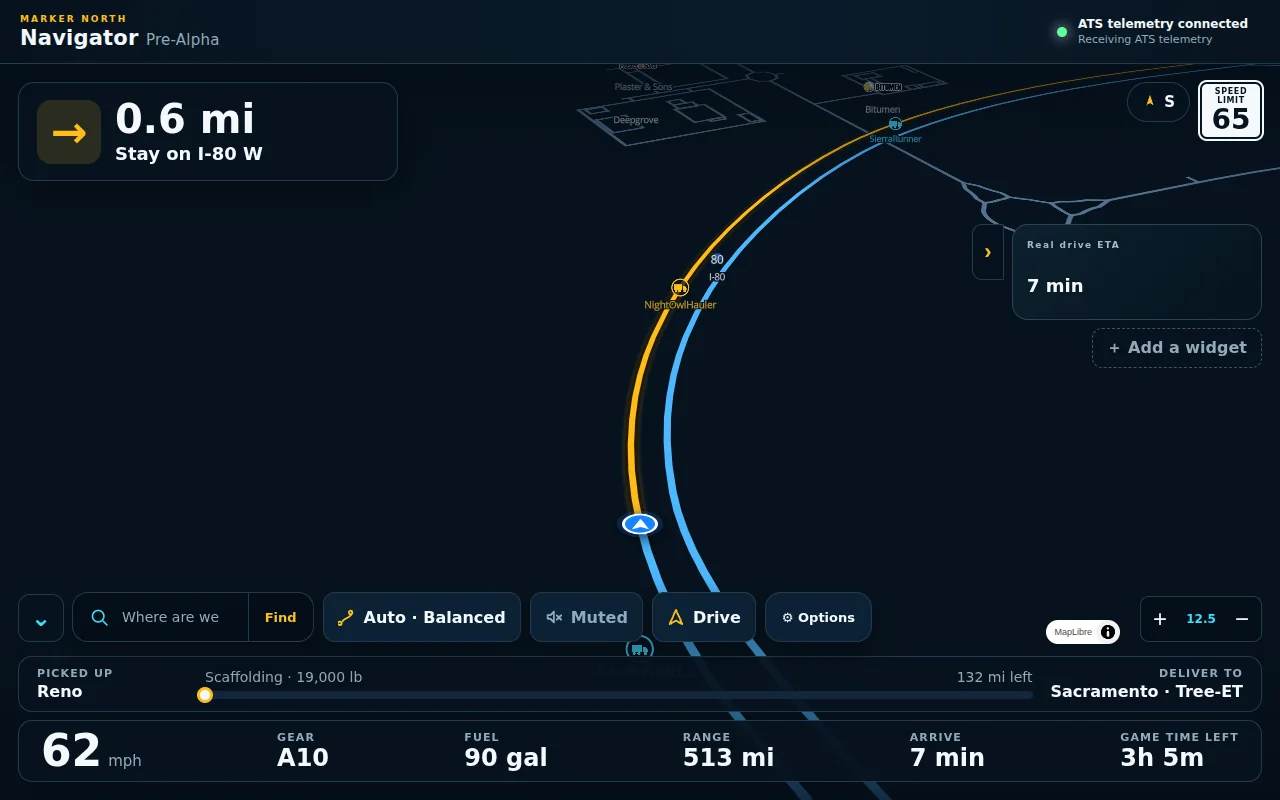
Navigator is your map, route and turn-by-turn guide. It opens in your browser on the PC.
- Open it: right-click the CAPS icon in the tray and choose Open Navigator, or use Open Navigator in your browser on the Hub's Navigator & map page.
- Your job route: take a job in the game and Navigator routes you to the pickup, then the delivery.
- Search: type a city or company in the search box, or tap Find for fuel, rest and parking, weigh stations, repair, truck dealers and viewpoints, nearest first.
- Route types: tap the route button to switch between Auto, Fastest, Balanced and Shortest. Auto uses Balanced in your truck and Fastest on Road Trip car jobs.
- Views: the view button cycles through Drive (tilted, follows your truck), Overview (the whole route) and Data (your widgets).
- Voice: the speaker button turns spoken turns on and off. Under Options > Voice you can pick the language: English, Spanish, Portuguese, French, German, Polish, Russian, Turkish, Dutch, Czech, Italian or Hebrew (your phone needs a voice for it).
- Real or game distance: the turn card shows the real distance to the turn by default (REAL), the distance your truck actually drives. Tap the card to see the game GPS distance (GAME); the spoken directions follow.
- Docking guide: back up within 150 m of your delivery and Navigator draws the yard from above: the bays, your truck and trailer to scale, and where the trailer is heading. Simple cues tell you which way to turn the wheel, when to straighten out and when to pull forward. It closes when you set the parking brake, drive off or deliver. It only shows you; it never steers.
- Widgets: add the numbers you like, such as speed, fuel, compass and real drive time. Choose them in Options > Widgets.
- Options: map look, map layers, route settings, voice, layout and widgets all live under Options.
05 The pop-out tablet
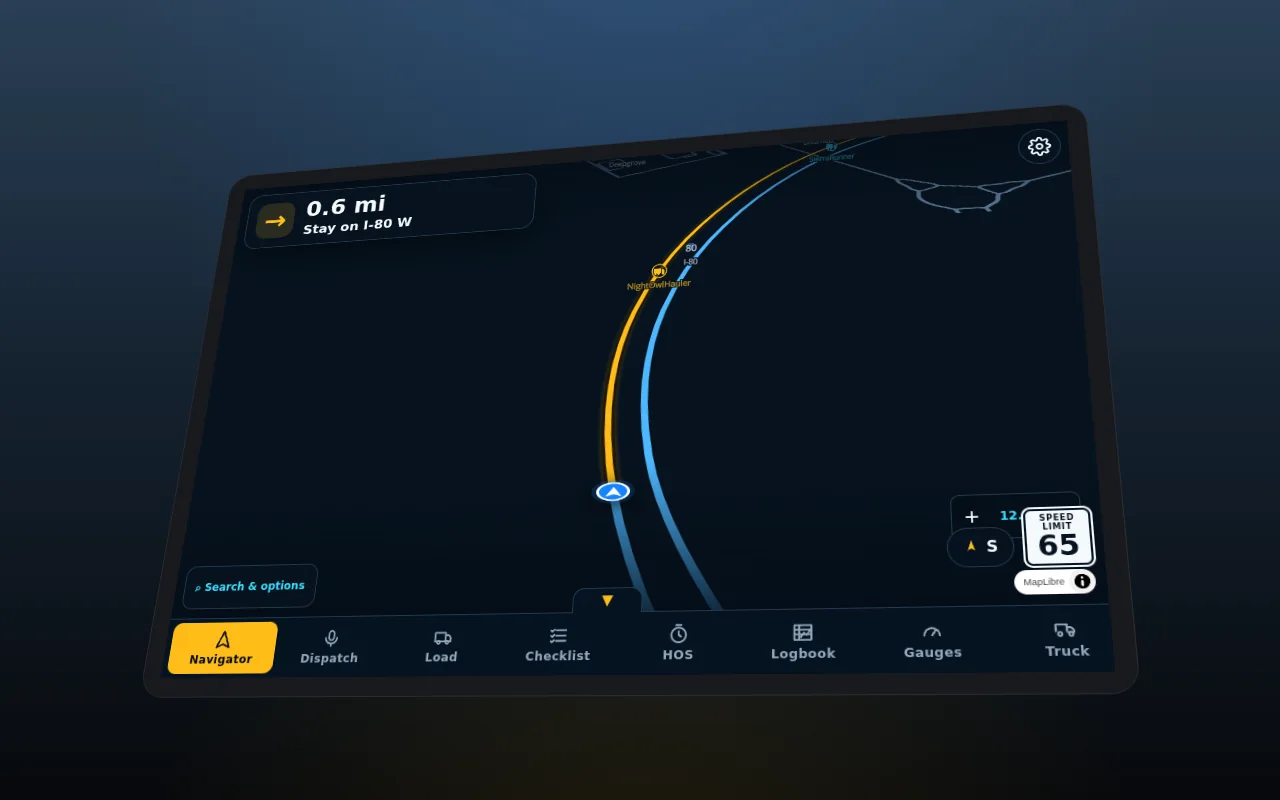
The pop-out tablet puts Navigator and its tabs in a small window on top of the game, right over your truck's dash screen.
- Open it: the tablet sits docked on the Hub's Tablet page; choose Pop out over the game to put it on top. You can also right-click the CAPS icon and choose Pop-out tablet.
- Move the mouse onto it: press F8. Press F8 again to go back to driving.
- Place it: drag the bezel (the frame) over your truck's screen and resize it to fit.
- Look: choose Tablet, Phone or Plain window, or HUD strip: a small bar with your next turn, speed, the speed limit and your gear, for the top of your windshield.
- Tilt to fit the dash: lean and turn the tablet until it lines up with the screen in your cab.
- Gauges: pick Classic round dials or Modern digital, Day, Night or Auto (follows the game clock), and the brightness.
- Click-through: turn it on and the mouse goes to the game, not the tablet.
- Tabs: Navigator, Dispatch, Load, Checklist, HOS, Fuel, Coach, Segments, Loads, Trips, Dashcam, CDL, Business, Logbook, Contracts, Convoy, Explorer, Share, Gauges, Truck, Buttons and Media. Hide the tab bar to give the map the whole screen.
- Pro tabs: Fuel, Coach, Loads, Trips, Dashcam, CDL, Business, Contracts, Explorer, Share (ride-along link and streamer kit) and Buttons (truck buttons) are part of Navigator Pro and carry a PRO tag. With Pro, the HOS tab adds the hours co-pilot, Segments adds your segment history and Convoy adds the convoy board. Segment leaderboards and the convoy's shared route stay free for every driver.
- More options: right-click the bezel, or right-click the CAPS icon and choose Tablet window.
Run the game borderless or windowed. In exclusive fullscreen, Windows hides every other window, the tablet too.
06 Phone, iPad and Android
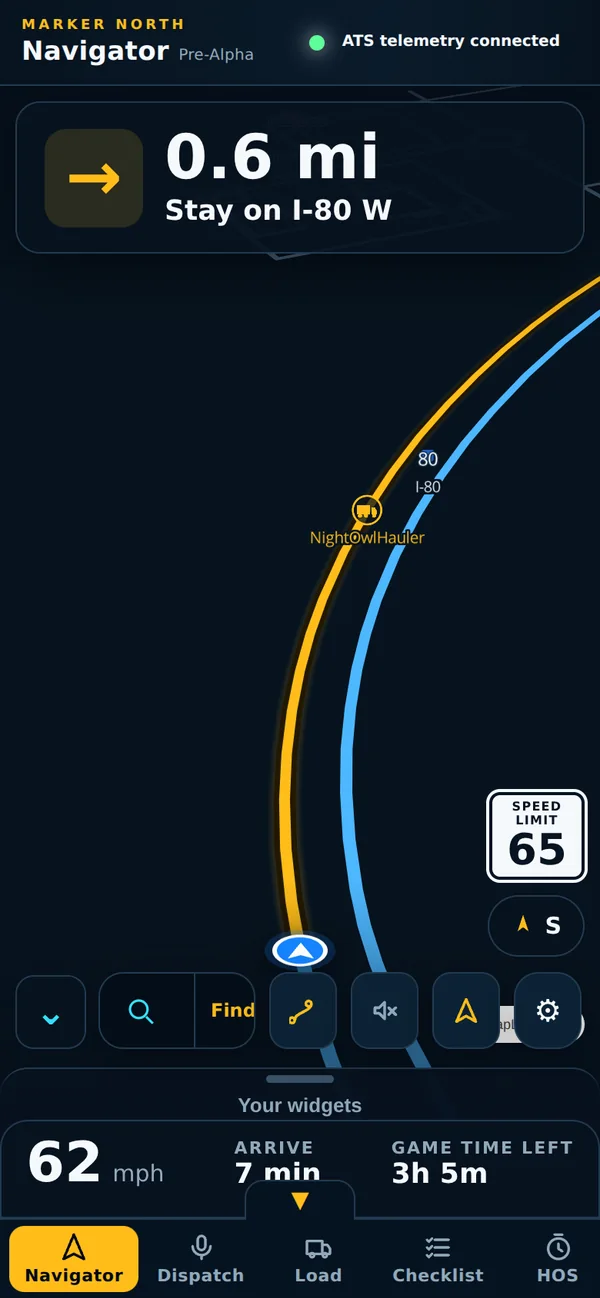
Use a phone or tablet as a second screen beside your wheel. CAPS keeps running on the PC; the device shows Navigator.
- Get the app for iPhone and iPad, or for Android, from the Downloads page or the Hub's Phone & tablet page. No app? Scan the QR code or open the link in any phone or tablet browser.
- Use the same network. The device and the PC need to be on the same home Wi-Fi or network.
- Pair it: open Phone & tablet in the Hub, or right-click the CAPS icon and choose Connect phone or tablet. Scan the QR code with the app.
- Drive. You get the same Navigator with tabs: Navigator, Dispatch, Load, Checklist, HOS and more.
07 Shadow, your dispatcher
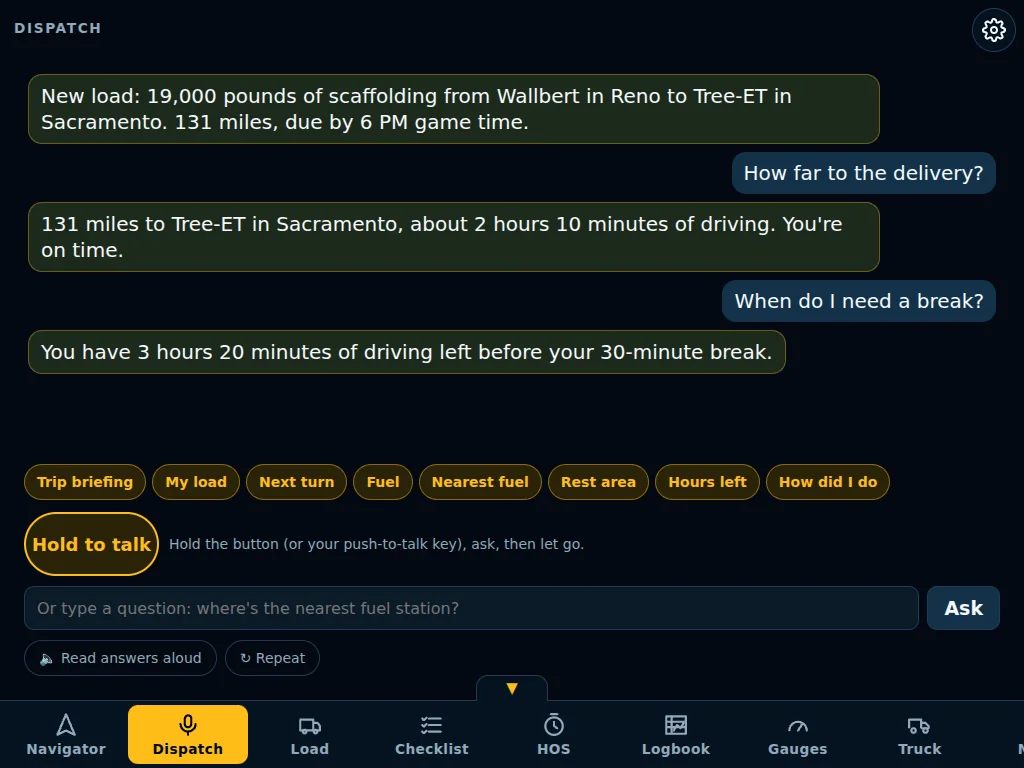
Shadow is a dispatcher you can talk to. Ask a question out loud and Shadow answers from your live game.
Set your push-to-talk key
- In Navigator, open Options > Voice.
- Under Shadow, choose Set push-to-talk key.
- Press the key or controller button you want to use.
You can also set it on the Hub's Shadow page, or from the CAPS tray menu.
Talk to Shadow
- Hold the key, ask, let go. Shadow answers out loud and the answer shows on the Dispatch tab.
- Voices: Shadow speaks with Joe. With Navigator Pro, Shadow and the crew (Moana, Officer Sandi, Loki) speak with natural voices made on your own PC. Pick another voice for Shadow under Options > Voice, and set the volume there. On a slower PC, Navigator switches to the standard voices by itself.
- Ears: hold push-to-talk and ask in your own words. Shadow turns your voice into text on your PC. With Navigator Pro, Pro ears (on unless you turn them off in Shadow's settings) send each push-to-talk clip to Marker North to be turned into text even more accurately; clips are never kept.
- Call-ins: Shadow speaks up by himself for a new load, when you’re loaded at the shipper, low fuel (with the nearest fuel), the final approach, the delivery and the end of your shift. Switch call-ins off in the same place.
- Your name: under Options > Voice, “What should Shadow call you?” He uses it most of the time and “driver” now and then. Leave it empty for just “driver”.
- Night desk: from 8 PM to 6 AM game time, Moana takes the desk with her own voice. Ask either of them "who are you?". Turn the night desk off in the same place if you'd rather keep Shadow around the clock.
- CB radio: now and then on the highway, other drivers chat on channel 19, and Loki keys up with a bad joke or a bear report that never pans out. Switch it off under CB radio chatter.
- Roadside inspections: roll slowly onto an open scale and you may be pulled in by Officer Sandi at the scale house. Have your pre-trip certified and your hours in order for a clean inspection, which counts toward the Roadside Ready and Spotless Record achievements on your profile.
- Quick questions: on the Dispatch tab, tap a button such as Trip briefing, My load, Next turn, Nearest fuel, Rest area or Hours left.
- On a phone or iPad: answers are read aloud on the device. You can also type a question, or use your keyboard's mic button.
Things to ask
- "How far to the delivery?"
- "Where's the nearest fuel?"
- "What's my next turn?"
- "When do I need a break?"
- "How many hours do I have left?"
- "What am I hauling?"
- "Any damage on the truck?"
08 Trips and stops
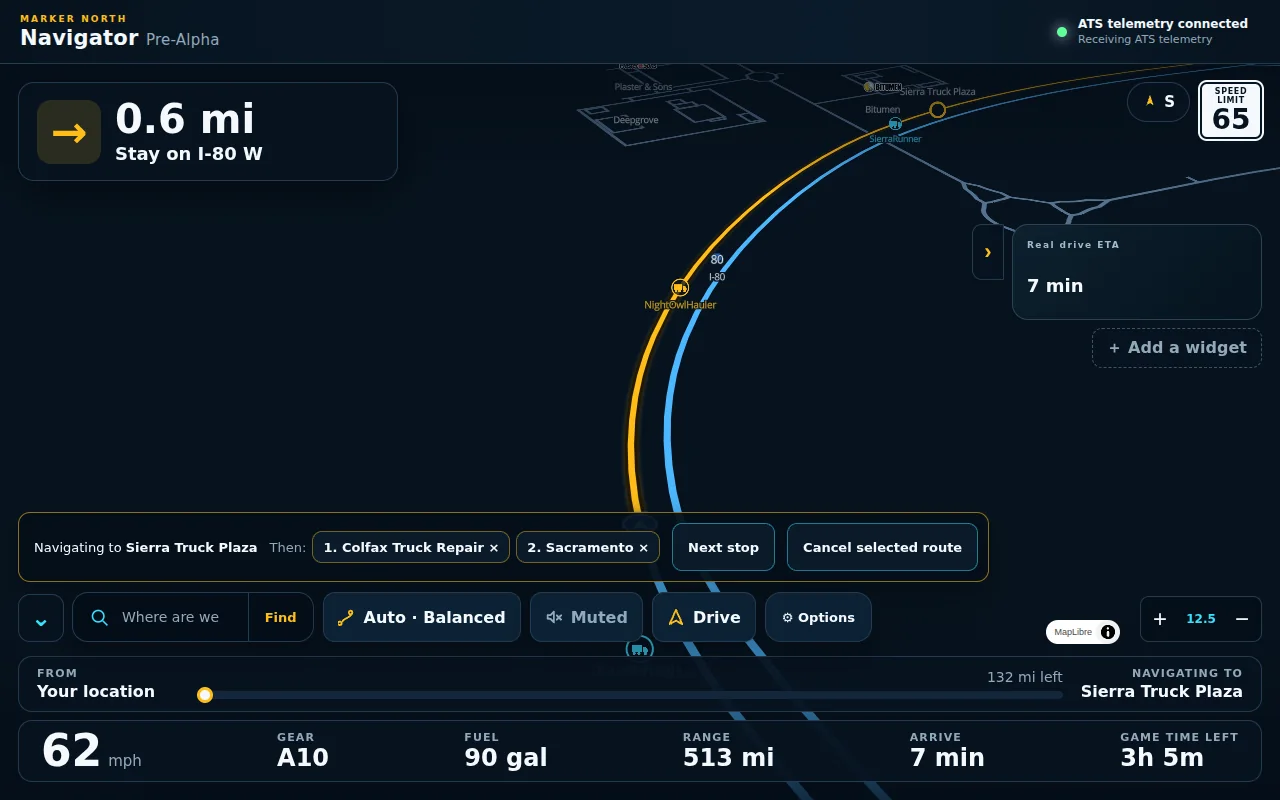
Need fuel or a repair on the way? Add it as a stop and keep your job route.
- Add a stop: search for a place, tap it on the map, then choose Add as a stop. Add as many as you need.
- Next stop: when you are done at a stop, tap Next stop to head for the next one.
- Back to the delivery: after your last stop, Navigator takes you back to your job's delivery by itself.
- Change your mind: tap the × on a stop to drop it, or Cancel selected route to clear them all.
09 Checklists, HOS and Logbook
Play it like a real driver. These tabs use game time and are just for fun, not a legal log.
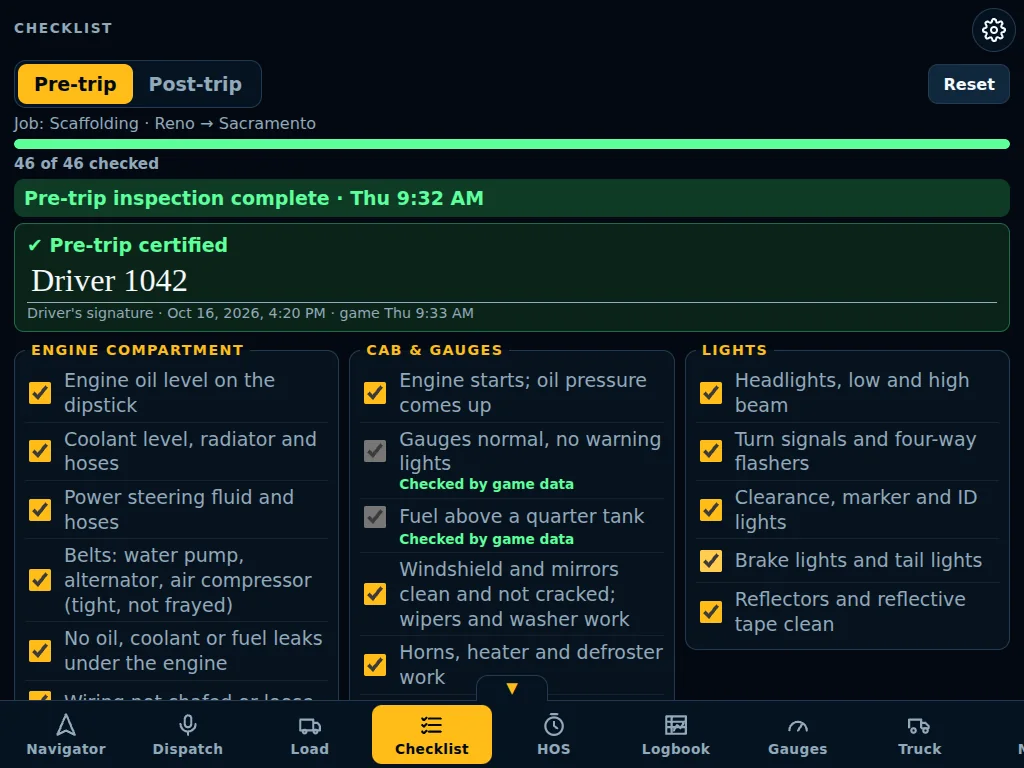
- Pre-trip and post-trip: open the Checklist tab and pick Pre-trip or Post-trip. Some items check themselves from the game, like gauges and fuel.
- Certify: when every item is checked, tap Certify inspection, type your name and sign.
- Hours of service: the HOS tab shows driving time left, your on-duty window, your next break and your cycle. In ETS2 it follows EU driving-time rules.
- Logbook: the Logbook tab draws your day on a duty-status graph and lists your trips: today, this week, this month and all time.
10 Convoy Pulse
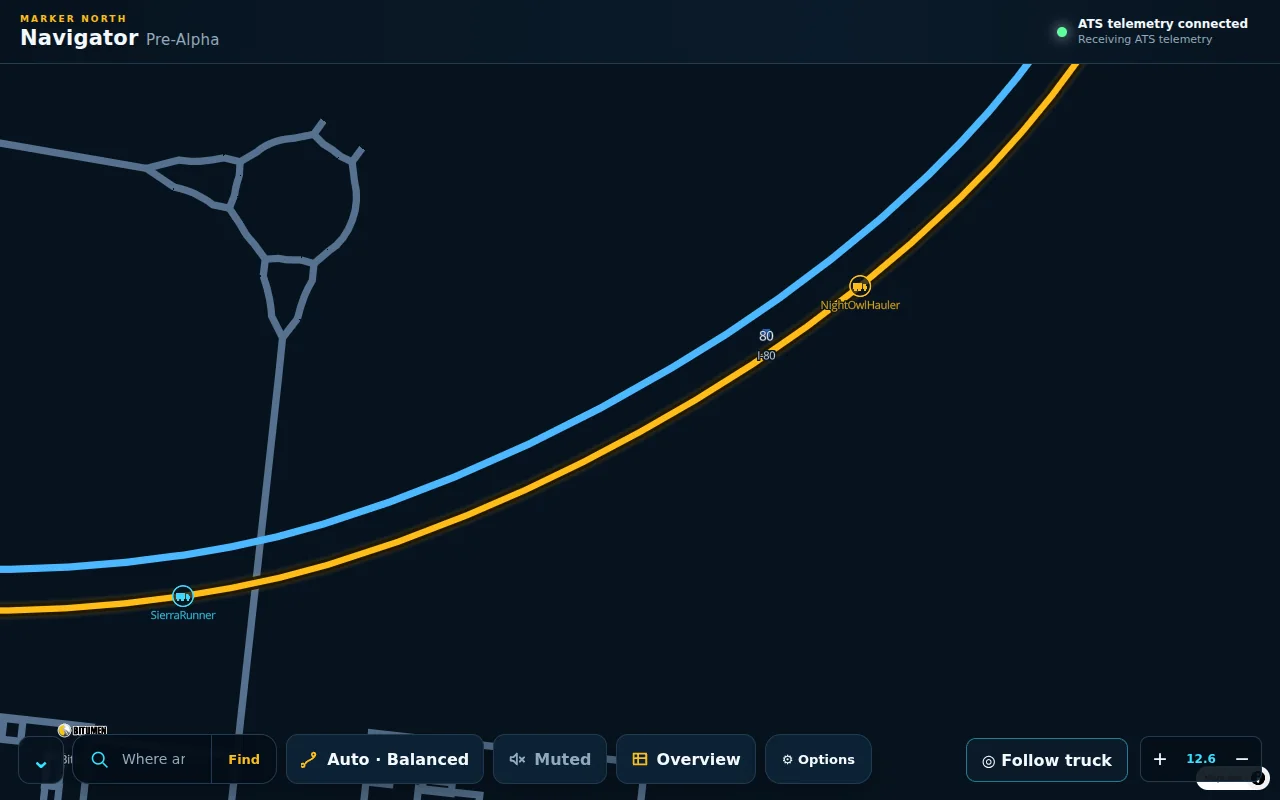
Convoy Pulse shows other Marker North drivers on your Navigator map, as small trucks with their driver names.
- Who you see: only drivers who choose to share where they are.
- Turn the markers off: in Navigator, open Options > Layout and switch off Show other Marker North drivers.
- Share your own spot: on the website, open Settings > Live Map Privacy and turn on Online Status (show me online) and Live Location (show my location).
- Stop sharing any time by turning those off again.
11 Troubleshooting
Most problems have a quick fix. If not, we're glad to help.
The map build is stuck or keeps failing
Your game is fine and Navigator keeps working on the map you have. Right-click the CAPS icon and choose Send Navigator diagnostics, then tell us in our Discord. Signed in? You can also use Support.
I can't see the tablet
The game is probably in exclusive fullscreen, which hides other windows. Switch it to borderless or windowed in its graphics settings. Then choose Pop out over the game on the Hub's Tablet page, or right-click the CAPS icon and choose Pop-out tablet.
Shadow or the turns have no voice
Open Options > Voice in Navigator. Check that spoken turns are on, Shadow isn't muted and the volume is up. Try Test Shadow's voice.
My phone shows an old page
Close the app completely and open it again. It loads the newest Navigator from your PC.
12 Privacy
Your game is yours. Here is the short version; the Privacy Policy has the details.
What stays on your PC
- Your game and mod files. They are only read, never changed or uploaded.
- The map Navigator builds and your Navigator settings.
- Your checklists, signatures and HOS log stay on the PC or device that shows Navigator.
- Your voice. Shadow turns what you say into text on your PC (with Navigator Pro, Pro ears send each push-to-talk clip to Marker North to be turned into text; clips are never kept), and his voices run on your PC too. For some questions, only the text and game facts like your load and route may go to Marker North to find a better answer.
What goes to your account
- Your trips and stats, so you can see them on the website and in the Logbook tab.
What is shared only if you choose
- Your spot on the Live Map and in Convoy Pulse: only with Online Status and Live Location turned on.
- Build reports and diagnostics, which help us fix map builds. Reports never include your Windows user name, passwords or pairing codes.